Library
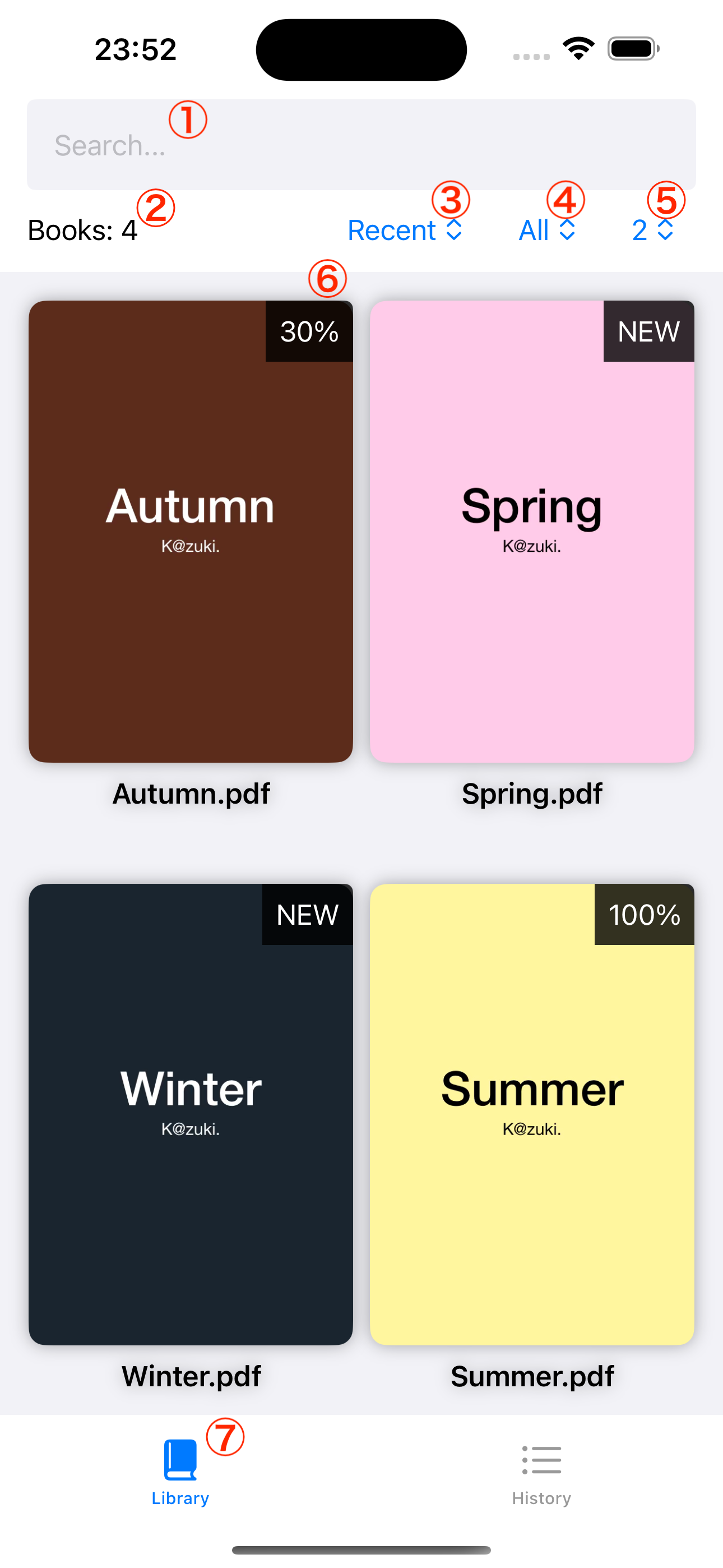
The Library screen displays all PDF files imported into Bookil, making it easy to find and start reading any PDF.
Screen Overview
| # | Component | Description |
|---|---|---|
| 1 | Search Bar | Filter books by PDF name |
| 2 | Book Count | Number of PDFs displayed |
| 3 | Sort | Reorder the list according to specified rules |
| 4 | Unread/Read Filter | Narrow down to files in a specified reading state |
| 5 | Column Switcher | Switch the number of PDF columns displayed |
| 6 | PDF Thumbnail | Displays thumbnails, progress, and names |
| 7 | Tab Bar | Switch between Library and History screens |
Search
Enter text in the search bar at the top of the screen to filter your PDFs by matching file names.
Sort Options
The sort function reorders the list according to the rules you specify:
- Recent - Sort by last access time
- Name - Sort alphabetically by file name
- Progress - Sort by reading progress
Filter by Reading Status
The filter allows you to narrow down your search to files in a specified state:
- All - Show all files
- Unread - Show files that have never been opened or are currently being read
- Read - Show files where all pages have been read (completed)
Switching the Number of Columns
You can adjust the number of PDF columns displayed on the screen to match your screen size and preferences.
Choose from 2 to 6 columns. The default is two columns.
Mark as Read/Unread
You can change a PDF's reading status:
- Long press a PDF file in Library view
- Tap Mark as read or Mark as unread in the menu that appears
Delete from Device
Some PDFs are large in file size. You can delete files directly from the Library screen:
- Long press a PDF file in Library view
- Tap Delete from device in the menu that appears
Deleting a file does not delete your reading history from your device. Your progress will be preserved if you import the same PDF again.