PDF Preview
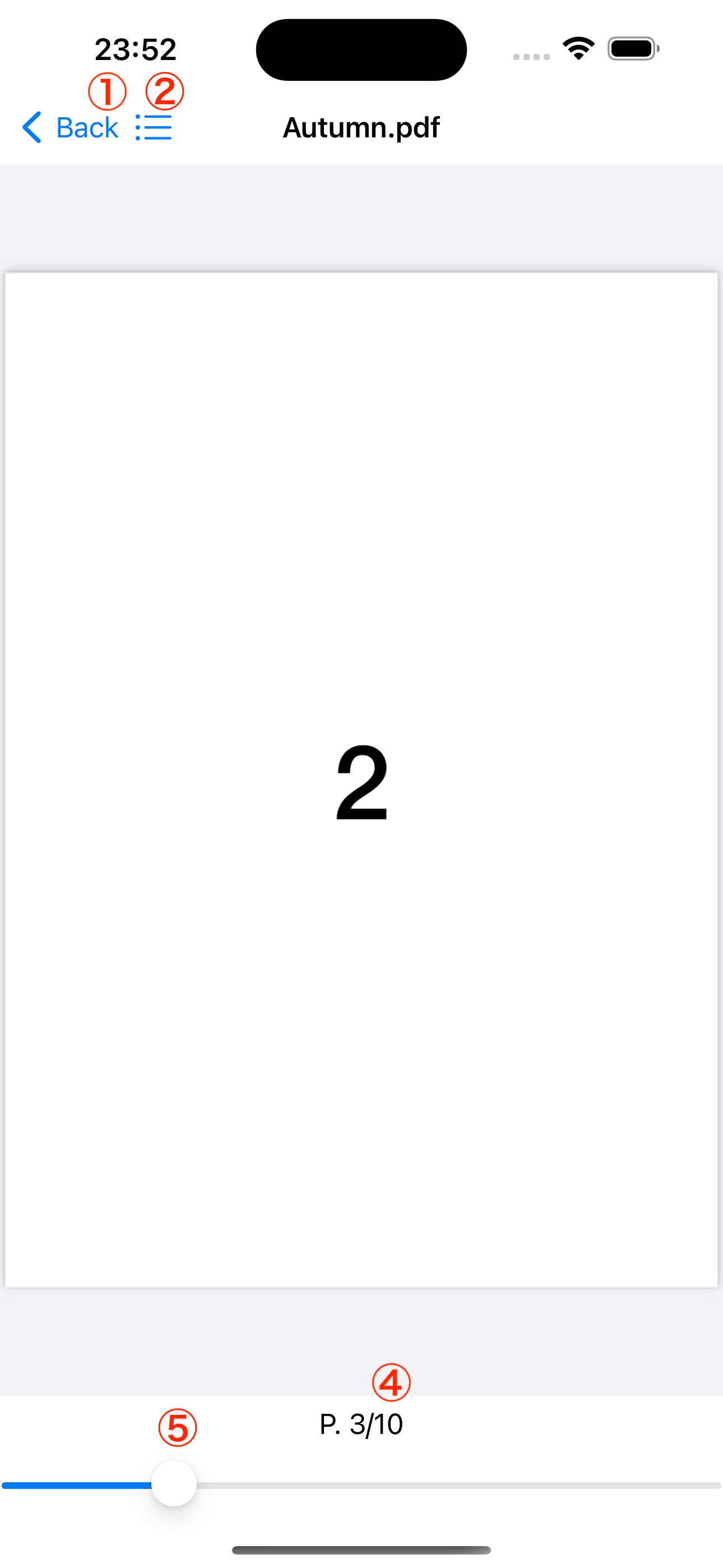
The Preview screen displays PDFs in a full-featured viewer optimized for reading.
Screen Overview
| # | Component | Description |
|---|---|---|
| 1 | Back Button | Return to Library screen |
| 2 | Table of Contents | Display the PDF's table of contents |
| 3 | PDF Preview | Displays the PDF with page transition by swiping |
| 4 | Page Number | Shows current page and total pages |
| 5 | Slider | Move the slider to navigate pages |
View a PDF File
The preview screen provides a comfortable reading experience with support for:
- Zoom in/out - Pinch to zoom or double-tap
- Text selection - Long press to select text for copying
- Translation - Select text and use iOS translation features
- Other standard functions - All common PDF viewing features
Reading Position Memory
Bookil automatically saves your reading position, so when you open the PDF again, you can continue from where you left off.
Since Bookil maintains its own reading history, you can resume reading from the same location even if you import the PDF again after deleting it from your device.
Table of Contents
If the PDF contains a table of contents, you can access it by tapping the Table of Contents button. This displays a list of chapters and sections, allowing you to jump directly to any section by tapping on it.
Page Navigation with Seek Bar
After tapping the screen, a seek bar appears at the bottom. You can easily navigate to any page by dragging the slider.
Auto Completion
When you reach the last page of a PDF, Bookil automatically marks it as "Read" (completed). This helps you keep track of which documents you've finished without any manual effort.