
Organize your library with collections
Group PDFs into collections. A book can belong to multiple collections.
A collection is a named group of PDFs. A single PDF can belong to many collections. Use collections to separate work from personal reading, group a series, or set aside books for later.
Create a collection
- Open the sidebar.
- Tap New Collection at the bottom of the Collections section.
- Type a name and tap Create.
The new collection appears in the sidebar.
Collection names don’t have to be unique — you can have two collections with the same name if you want. Empty names are ignored.
Add books to a collection
Bookil doesn’t have an “Add book” button inside a collection. Add books from the library instead:
From the context menu (one book):
- In the library, long-press a book.
- Tap Collections.
- Tap the collection you want to add the book to. A checkmark appears next to collections the book already belongs to.
From selection mode (many books):
- Tap Select in the search row.
- Tap the books you want to add.
- Tap Collections in the bottom action bar.
- Pick the destination collection.
Rename or delete a collection
In the sidebar, long-press a collection:
- Rename — type a new name and confirm.
- Delete — Bookil asks for confirmation. Deleting a collection doesn’t delete the books in it; they go back to All Books and Unfiled.
There’s no undo for deletion.
Reorder collections
Collections appear in the sidebar in the order you set. When you have more than one collection, tap the reorder button (the up-and-down arrows) in the Collections header to open the reorder sheet, then drag the handles to arrange the collections. Tap Done when you’re finished.
All Books, Unfiled, and collections
The sidebar gives you three views into your library:
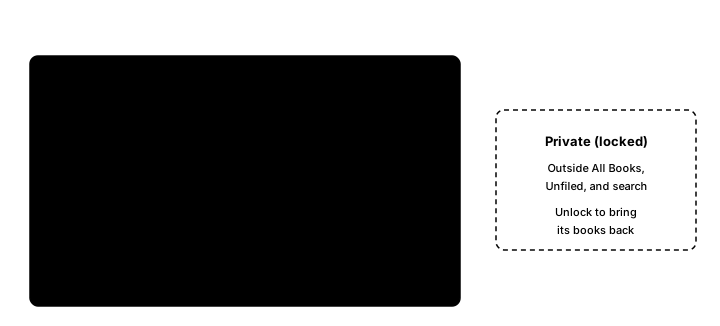
- All Books — every book in your library (except books in a locked private collection).
- Unfiled — books that don’t belong to any collection. Useful when you want to clean up by sorting recent imports into collections.
- A specific collection — only books in that collection.
A book that belongs to one or more collections is not in Unfiled. A book that belongs to no collection appears in Unfiled.
Not yet supported
- Smart collections — collections don’t auto-fill by rule. You add books manually.
- Per-collection book order — inside a collection, books follow the library’s current sort.
- Counts — Bookil doesn’t show a count next to each collection in the sidebar.
What’s next
To hide a collection from view, see Private collections.