
Private collections
Lock a collection so its books are hidden from the rest of the library.
A private collection is a regular collection with a lock on it. While the lock is on, books in that collection are hidden from All Books, Unfiled, and search. To see them, unlock the collection with Face ID, Touch ID, or your device passcode.
Bookil’s private collections follow the same design as the Hidden album in Apple Photos: they hide books from view. Bookil does not modify the PDF files themselves.
Before you start
- Your device must have a passcode set. Without one, Bookil can’t use Face ID or Touch ID, and private collections aren’t available.
- Locking is per-collection. Locking one collection doesn’t lock any other.
Lock a collection
- Open the sidebar.
- Long-press the collection you want to lock.
- Tap Lock.
The collection is now locked. Its books disappear from All Books, Unfiled, and search. The collection itself still appears in the sidebar with a lock icon.
You don’t need to authenticate to lock a collection — only to unlock it.
Open a locked collection
- Tap the collection in the sidebar.
- Bookil shows a Locked Collection screen with an Unlock button.
- Tap Unlock and authenticate with Face ID, Touch ID, or your passcode.
Once unlocked, you can read books in the collection normally. The lock state is per-session: when you send Bookil to the background (Home screen, App Switcher, another app), the collection re-locks automatically. You’ll need to authenticate again the next time you open the collection.
This is the same behavior as the Hidden album in Apple Photos and locked notes in Apple Notes.
Remove the lock entirely
There’s a separate Unlock action in the sidebar context menu that permanently turns off the lock — the collection becomes a regular collection again, and its books reappear in All Books and Unfiled.
- Long-press the locked collection in the sidebar.
- Tap Unlock.
- Authenticate.
Now the collection has no lock and behaves like any other collection.
⚠️ This is different from the “Unlock” button on the Locked Collection screen, which only unlocks the current session. The sidebar Unlock removes the lock entirely.
What’s hidden, what’s not
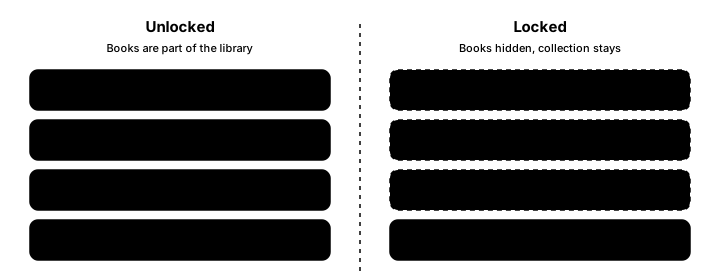
While a collection is locked:
- Its books are hidden from All Books, Unfiled, and search.
- The collection itself still appears in the sidebar with a lock icon.
- The collection’s name is still visible to anyone who sees the sidebar.
Across devices
When iCloud sync is enabled (planned), the lock state of each collection syncs across devices: if you lock a collection on your iPhone, it appears locked on your iPad too. But the unlocked session doesn’t sync — you’ll need to authenticate on each device separately. This avoids sharing your unlocked state with devices that may be unattended.
iCloud sync is not yet shipping. For now, lock state lives on the device where you set it.
Limits
- You can’t choose “lock on creation” — create a collection first, then lock it from the sidebar context menu.
- There’s no master unlock for all locked collections at once.
- The lock can’t be removed without authenticating.
- The lock follows the same design as the Hidden album in Apple Photos — it hides books from the library view and does not modify the PDF files themselves. Bookil’s backup (
Bookil Library.json) writes everything in plain JSON, including the contents of locked collections. See Backup your library for storage guidance. - If your device passcode is removed, you won’t be able to unlock locked collections until you set one again.